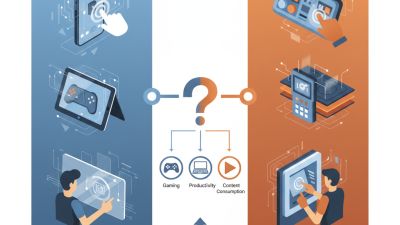
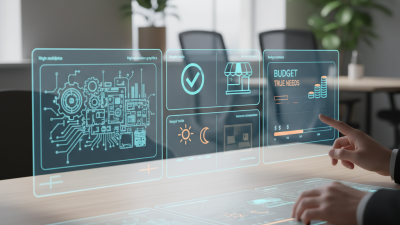
Choosing the right touch screen display is more than comparing size, brightness, and price. It is a practical decision about how people will interact with equipment every day. A retail kiosk may need fast response and strong glass. A factory panel may face dust, gloves, vibration, and constant cleaning. A medical workstation requires dependable operation, clear images, and careful hygiene.
Steve Jobs once said, “Design is not just what it looks like and feels like. Design is how it works.” That principle remains useful when evaluating a touch screen display. A vivid panel can still fail if touch accuracy is poor. A low-cost model may become expensive after repeated repairs. Experienced buyers should examine viewing angles, brightness, surface treatment, touch technology, operating temperature, connection options, and expected service life. Small details matter, such as whether a user can tap accurately with wet fingers or protective gloves.
Real testing is essential. Ask suppliers for samples, not only brochures. Place the display under strong overhead light. Test menus with different users. Watch for delayed input, visible fingerprints, edge reflections, and awkward mounting points. No checklist is flawless. I have seen technically impressive displays feel uncomfortable in actual use. That is why this guide presents seven practical tips for selecting a reliable touch screen display. It also questions easy assumptions, including the belief that higher resolution always creates a better experience. The right choice should fit the environment, users, workload, and long-term maintenance plan.
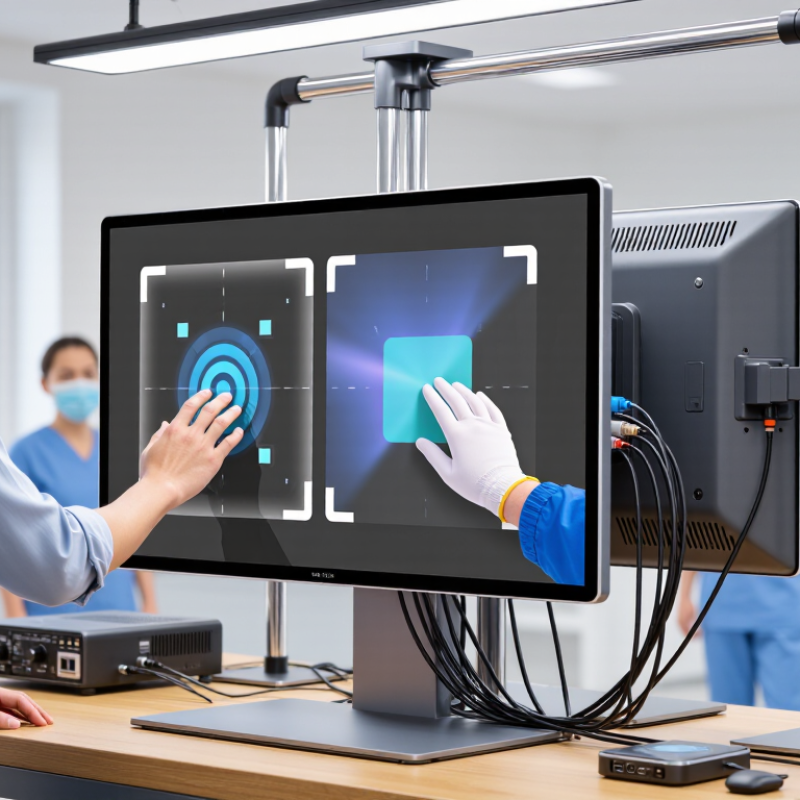
Tip 1: Define the application before comparing screen sizes. A warehouse terminal needs glove operation, bright visibility, and impact resistance. A hospital kiosk needs easy cleaning, readable text, and reliable response with wet fingers. Pew Research Center reported in 2024 that 91% of U.S. adults own a smartphone. Users now expect immediate touch feedback, even in unfamiliar settings. That expectation can expose weak interface decisions.
Tip 2: Map the user environment in detail. Record temperature, humidity, dust, vibration, lighting, and viewing distance. Check whether users wear gloves or operate the display with dirty hands. IEC 60529 provides IP protection classifications, but an IP rating alone does not prove suitability. Confirm the enclosure, connectors, mounting angle, and cleaning process together. I have seen projects specify an IP rating, then overlook condensation inside the housing.
Tip 3: Test the complete workflow with real users. The International Labour Organization estimated 2.93 million work-related deaths globally in 2019, with many linked to unsafe conditions. That figure is not a touchscreen statistic, but it reinforces careful workplace design. Use ISO 9241 guidance for usability and ergonomics. Measure reach, glare, touch accuracy, and error recovery. Test during shift changes, with actual gloves, noise, and imperfect lighting. A laboratory result may look excellent. Field behavior can disagree.
| Tip | Application or Environment Factor | Recommended Display Requirement | Typical Reference Values | Why It Matters | Verification Checklist |
|---|---|---|---|---|---|
| 1 | Define the touch method | Choose projected capacitive touch for finger-based interfaces and multi-touch gestures. Consider resistive touch when users may wear thick gloves or use a stylus. | Projected capacitive: commonly supports multi-touch and gesture input. Resistive: generally responds to pressure from a finger, glove, or passive stylus. |
The sensing technology directly affects input accuracy, glove compatibility, durability, and the type of user interaction available. | Test with bare fingers, work gloves, wet fingers, protective film, and the intended stylus before selection. |
| 2 | Match screen size and resolution to the task | Select a screen large enough for the interface controls while maintaining suitable pixel density for text, diagrams, and image content. | Compact control panels: approximately 7–10 inches. General operator interfaces: approximately 10–15 inches. Detailed dashboards: 15 inches or larger, depending on viewing distance. |
Small controls increase input errors, while excessive resolution or screen size can add cost and require more processing power. | Confirm minimum button size, viewing distance, aspect ratio, available mounting space, and application resolution support. |
| 3 | Evaluate ambient light | Use a higher-brightness panel, anti-glare surface, and controlled optical bonding when the display will be used outdoors or near strong lighting. | Indoor environments: commonly about 250–400 cd/m². Bright indoor or semi-outdoor environments: often about 500–800 cd/m². Direct-sunlight applications may require 1,000 cd/m² or more, subject to thermal design. |
Ambient light can reduce contrast, create reflections, and make touch targets difficult to see. | Measure readability at the actual installation angle and under the brightest expected lighting conditions. |
| 4 | Specify protection against dust, water, and cleaning agents | Select a suitable front-panel ingress protection level and verify resistance to the cleaning chemicals used at the site. | IP54: limited protection against dust and water splashes. IP65: dust-tight and protected against water jets at the enclosure level. IP67: suitable for temporary immersion under defined test conditions. |
Protection requirements vary between offices, factories, healthcare areas, kitchens, and outdoor installations. | Check the complete assembled front panel, sealing method, connector protection, cleaning procedure, and applicable IP test conditions. |
| 5 | Consider temperature, humidity, and vibration | Choose an industrial-rated display when the unit will face temperature changes, condensation, vibration, shock, or continuous operation. | Commercial operating range: often around 0°C to 40°C. Extended industrial ranges: commonly around −20°C to 60°C, depending on the design. Some systems require additional heating, cooling, or airflow. |
Environmental stress can cause slow response, display aging, condensation, mechanical failure, or intermittent connections. | Compare the specified operating and storage ranges with actual site conditions, vibration levels, installation orientation, and duty cycle. |
| 6 | Check viewing angle and ergonomics | Use a wide-viewing-angle panel when multiple operators view the display from different positions. Plan the mounting height and tilt for comfortable touch operation. | Many IPS-type panels provide approximately 160°–178° horizontal and vertical viewing angles, measured by the manufacturer’s contrast criteria. | Poor viewing geometry can cause color shift, reduced contrast, glare, and operator fatigue, especially during long shifts. | Test the display from the highest, lowest, left, and right expected viewing positions with the actual interface shown. |
| 7 | Confirm interfaces, mounting, and service requirements | Match the video input, touch communication interface, power supply, mounting pattern, cable routing, and expected service life to the host system. | Common video interfaces include HDMI, DisplayPort, USB-C, and VGA. Touch communication commonly uses USB or serial communication. Mounting may use VESA patterns, panel mounting, or custom brackets. |
Electrical or mechanical mismatches can prevent installation, increase integration time, and make future replacement difficult. | Verify connector location, cable length, input compatibility, power range, mounting dimensions, driver support, warranty terms, and spare-unit availability. |